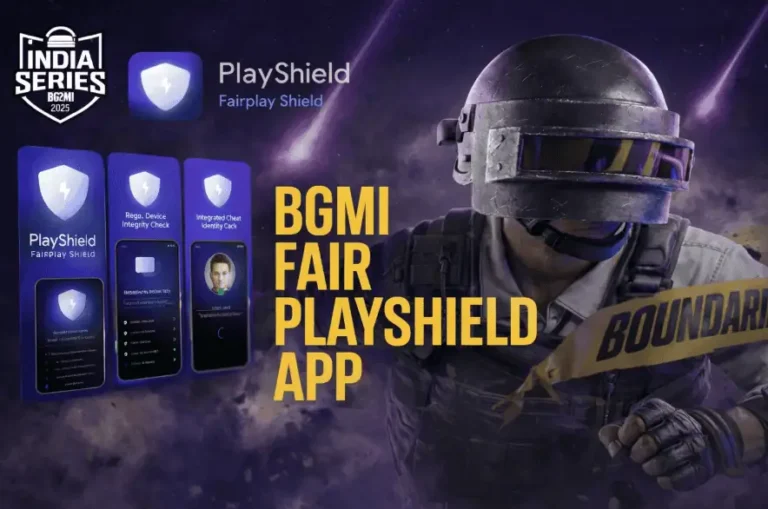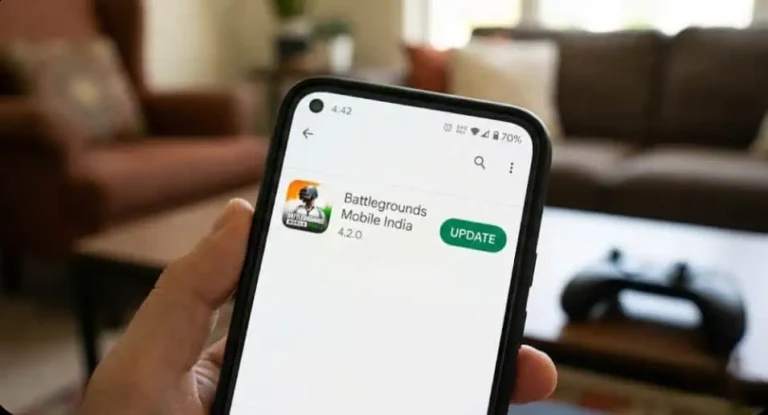
The 4.2 Update Has Dropped: Why You Need This Guide Now:
The moment we’ve all been waiting for is finally here. The BGMI 4.2 Update (released January 15, 2026) has landed, bringing with it massive hype, primarily fueled by the stunning Royal Enfield collaboration and the highly anticipated Primewood Genesis mode. Gamers everywhere are desperate to drop into the new patch with the precision and frame rates that only a PC can offer.
However, a fundamental issue persists in 2026: Krafton still has not released an official PC client for Battlegrounds Mobile India. This forces us onto emulators, and with the new bgmi 4.2 update security patch, standard setups are failing. If you’ve been slammed by the frustrating “Server Busy” error or experiencing unexpected crashes, you’re not alone.
The Promise: This comprehensive guide provides the specific, technical fix required for the January 2026 BGMI 4.2 patch. We will show you exactly how to achieve stable, zero-lag gameplay and dominate the lobbies from your Windows PC.
BGMI PC Download Guide 2026
The “Safety First” Disclaimer: Understanding the Ban Risk
As expert gaming journalists, we must be absolutely clear: playing BGMI on a PC emulator exists in a grey area of the Terms of Service. While millions of users utilize emulators, Krafton’s Rules of Conduct prohibit unauthorized third-party software that grants an unfair advantage.
- Ban Risk: The risk of a temporary or permanent ban, while low for top-tier emulators, is never zero.
- Our Advice: We strongly advise using a secondary BGMI ID for PC play. Do not risk your main account, especially if it’s heavily invested. We do not claim this method is 100% ban-proof, only that it is the most stable and optimized method for the current patch. Proceed at your own discretion.
Prerequisites for Zero-Lag BGMI 4.2 on PC
Before we dive into the installation, ensure your machine meets these technical requirements. The 4.2 update is resource-intensive, making the minimum specs crucial for stability.
- Operating System: Windows 10 or Windows 11 (64-bit required).
- Virtualization: Ensure Hyper-V is disabled or configured correctly (many emulators, including BlueStacks, perform better without it).
- CPU: Intel or AMD Processor (Multi-core, Virtualization Technology enabled in BIOS).
- RAM: Minimum 8GB RAM. For stable 90 FPS performance, 16GB is highly recommended.
- Storage: SSD (Crucial for fast loading times).
Step-by-Step Installation: BlueStacks 5 (The Stable Choice for 4.2)
BlueStacks 5 remains the gold standard for BGMI due to its superior stability and comprehensive optimization profiles. However, installing it incorrectly will lead directly to the “Server Busy” error.
Step 1: Download BlueStacks 5 Pie 64-bit
Download the latest version of BlueStacks 5 from the official website. When creating a new instance, ensure you select the “Pie 64-bit” version. The older Nougat 32-bit instance is incompatible with the 4.2 security update.
Step 2: The Secret Sauce – Fixing the “Server Busy” Error
This is the most critical step and the key fix for the 4.2 update instability. The new security patch is heavily scrutinizing the ABI (Application Binary Interface) architecture.
- Open the BlueStacks Multi-Instance Manager.
- Select your BGMI instance (Pie 64-bit).
- Click the settings gear icon for that instance.
- Navigate to the “Engine” tab.
- Find the “ABI Setting” (or CPU architecture setting).
- Explicitly set the ABI Setting to “ARM.”
Technical Explanation: Most emulators default to “Auto” or “x86,” which the 4.2 patch flags as non-native hardware, triggering the “Server Busy” security lockout. Forcing the instance to use the ARM architecture mimics a modern, high-end Android device, bypassing the 2026 security checks and instantly resolving the connection error. This is the definitive BGMI Server Busy Fix 2026.
Step 3: Install BGMI and Configure the Controls
- Launch the optimized ARM BlueStacks instance.
- Open the Google Play Store and log in.
- Search for and install Battlegrounds Mobile India.
- Once installed, download the HD resource pack (700MB+).
- Familiarize yourself with the BlueStacks native Keymapping Tool to adjust your PC controls (WASD, mouse aim, etc.).
Optimization Guide: Achieving 90 FPS Settings
To truly experience zero-lag performance and leverage your high refresh rate monitor, apply these in-game and emulator settings.
Emulator Settings (BlueStacks)
| Setting | Recommended Value | Notes |
|---|---|---|
| CPU Cores | Custom: 4 Cores | Essential for multithreading the game engine. |
| RAM Allocation | Custom: 4096 MB (4GB+) | Critical for 4.2 stability and avoiding stuttering. |
| Display Resolution | 1920×1080 (1080p) | Use 2K only if you have a high-end RTX card. |
| Frame Rate | 90 FPS (Enable High Frame Rate) | Syncs with the in-game settings. |
In-Game BGMI Settings
| Setting | Value | Why It Matters |
|---|---|---|
| Graphics | Smooth | Minimizes rendering load, maximizing FPS. |
| Frame Rate | Extreme (or 90 FPS) | This unlocks the highest refresh rate possible. |
| Anti-Aliasing | Disabled (or 2x) | Reduces visual fidelity but improves raw performance. |
| Shadows | Disabled | Free performance boost. |
Alternative: GameLoop (For Raw Performance)
While BlueStacks is the most stable method post-4.2, some users prefer GameLoop for its historically tighter integration and superior native aim-assist mapping.
Current Status (Jan 2026): GameLoop is experiencing intermittent keymapping issues with the new Peaky Blinders event lobby, particularly around the inventory and event screens. If you prioritize raw, high-FPS combat over event stability, GameLoop is a viable secondary option, but expect manual key remapping until a patch drops.
Troubleshooting 2026: Common BGMI PC Issues
Issue: “Server restricted area” or VPN Detected
Symptom: You receive a message stating you are in a restricted region, or the game detects a VPN is running.
Fix: This is a common GEO-IP security check.
- Connect to a stable, reputable Indian VPN service.
- Launch BGMI and log in successfully.
- Once the main lobby loads, disconnect the VPN.
- BGMI will remain connected to the server via your native IP without interruption until your next launch.
Issue: Keymapping Broken After Update
Symptom: After the 4.2 update, your WASD or scope buttons no longer function correctly, particularly in the new modes.
Fix: The update often overwrites local control profiles.
- In your emulator’s Keymapping Tool (BlueStacks or GameLoop), select the “Update from Cloud” or “Restore Default” option.
- If that fails, manually re-drag the essential controls (movement, fire, scope) back onto the screen. Always save your custom profile before closing the emulator.
FAQ Section
Is BGMI official PC version coming in 2026?
As of January 2026, there is no confirmed release date for an official BGMI PC client from Krafton. Rumors continue to circulate, especially regarding a possible native release following the success of PUBG PC, but these remain speculative. Until an official announcement, emulators are the only way to Play BGMI on Windows 11 and 10.
Can I play with mobile friends while on PC?
Yes, you can party up and play with friends who are using mobile devices. However, the game’s matchmaking system (MMR) is designed to detect emulators. When you join a match, you will primarily be placed into emulator-only lobbies. This prevents PC users from having an unfair advantage over touch-screen players.
Does setting the ABI to ARM slow down my PC?
No. Setting the ABI to ARM uses a slightly different virtualization method within the emulator but does not impact your overall PC performance. In fact, by resolving the “Server Busy” error, it enables stable performance, which is far superior to trying to force an unstable x86 connection.