Reboot Keybind in Fortnite – In Fortnite, rebooting a teammate is one of those moments where everything can go wrong in seconds. Enemies push, shots start flying, and if your reboot cancels even once, the situation can spiral fast. Surprisingly, many players never touch the Reboot Keybind, even though changing it can make the entire process smoother.
If you’ve ever lost a teammate because the reboot didn’t go through, this guide will show you how to change the Reboot Keybind in Fortnite and why it’s worth doing.
What Is the Reboot Keybind in Fortnite?
The Reboot Keybind controls the action you use when interacting with a Reboot Van after collecting a teammate’s Reboot Card. By default, Fortnite ties this action to the general Interact button.
That works fine on paper. In real matches, though, it’s a different story.
Players often cancel the reboot accidentally by:
- Picking up nearby loot.
- Reloading or switching weapons.
- Letting go of the interact key for a split second
This is exactly why having a dedicated reboot keybind helps.
Why Changing the Reboot Keybind Actually Matters
- At a casual level, the default settings are usable. But once you play Ranked, tournaments, or even sweaty public lobbies, small delays become costly.
- Changing your reboot keybind helps you:
- Reboot teammates faster under pressure
- Avoid canceling the reboot by mistake
- Keep control during chaotic fights
- Stay consistent across matches
- It’s a small change, but one that makes a noticeable difference over time.
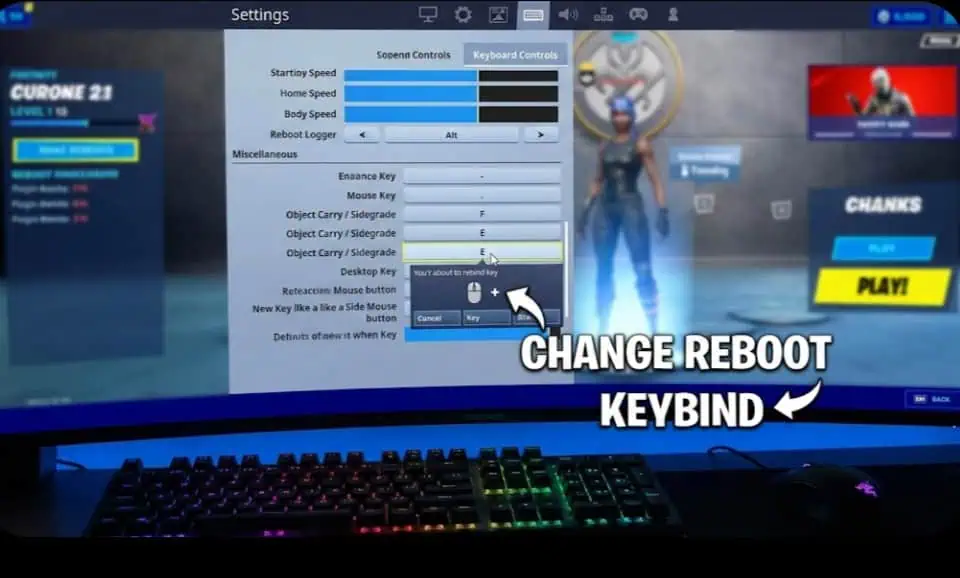
How to Change Reboot Keybind in Fortnite (PC)
If you’re on keyboard and mouse, Fortnite gives you full control over this setting.
Steps:
1. Open Fortnite
2. Click the Settings icon
3. Go to Keyboard Controls
4. Scroll until you find Reboot Teammates
5. Click the empty box or current bind
6. Press the key you want to use
7. Save your settings
That’s it. The new keybind applies instantly.
Best Reboot Keybinds for PC Players
There’s no single “best” keybind, but some keys work better than others.
Common choices include:
- F or E – Easy to reach, minimal hand movement
- Mouse Button 4/5 – Very popular among competitive players
- Caps Lock – Surprisingly common in high-level play
The main thing is avoiding overlap with build, edit, or weapon keys.
How to Change Reboot Keybind on Controller
Controller players can also customize reboot controls, though it requires using a Custom layout.
Here’s how:
1. Open Settings
2. Go to Controller Mapping
3. Switch to Custom
4. Find Reboot Teammates
5. Assign a button or button combo
6. Save changes
If you’re using a controller with back paddles, assigning reboot to a paddle makes the action much more reliable.
Reboot Keybind Not Working? Try This
If your reboot still isn’t working properly, check the following:
- Make sure you actually have the Reboot Card
- Hold the key — don’t tap it
- Look for keybind conflicts with Interact or Reload
- Reset keybinds and reassign them
- Restart Fortnite after changing settings
Most issues come from overlapping binds rather than bugs.
Tips to Reboot Teammates More Safely
Keybinds help, but positioning matters just as much.
A few practical tips:
- Build cover before starting the reboot
- Reload all weapons beforehand
- Clear nearby enemies if possible
- Have teammates watch angles
- Don’t rush the interaction if you’re exposed
Reboot Vans are high-risk zones, and preparation goes a long way.
Final Thoughts
Learning how to change the Reboot Keybind in Fortnite isn’t something most players prioritize, but it should be. A clean, dedicated bind removes unnecessary mistakes and gives you one less thing to worry about when matches get hectic.
If you play team modes regularly, it’s absolutely worth adjusting this setting and testing what feels right for you.